


WhatsApp chatbot for restaurants, orders and delivery
Last updated: October 2026.
Short answer: a WhatsApp chatbot answers menu questions at any hour, sends guests to your Mavibot shop to order and takes table bookings. The order shows up in the Orders tab of the shop. You connect WhatsApp through your Meta account and add the menu to an AI assistant. The free plan is enough to start, and Meta bills WhatsApp conversations separately.
This guide is for owners of restaurants, cafes and dark kitchens whose guests already write to them in WhatsApp. It shows what a bot can do there, how to set it up in five steps and what it costs. Mavibot is our product, and the steps follow its interface as of October 2026.
What a WhatsApp chatbot does for a restaurant
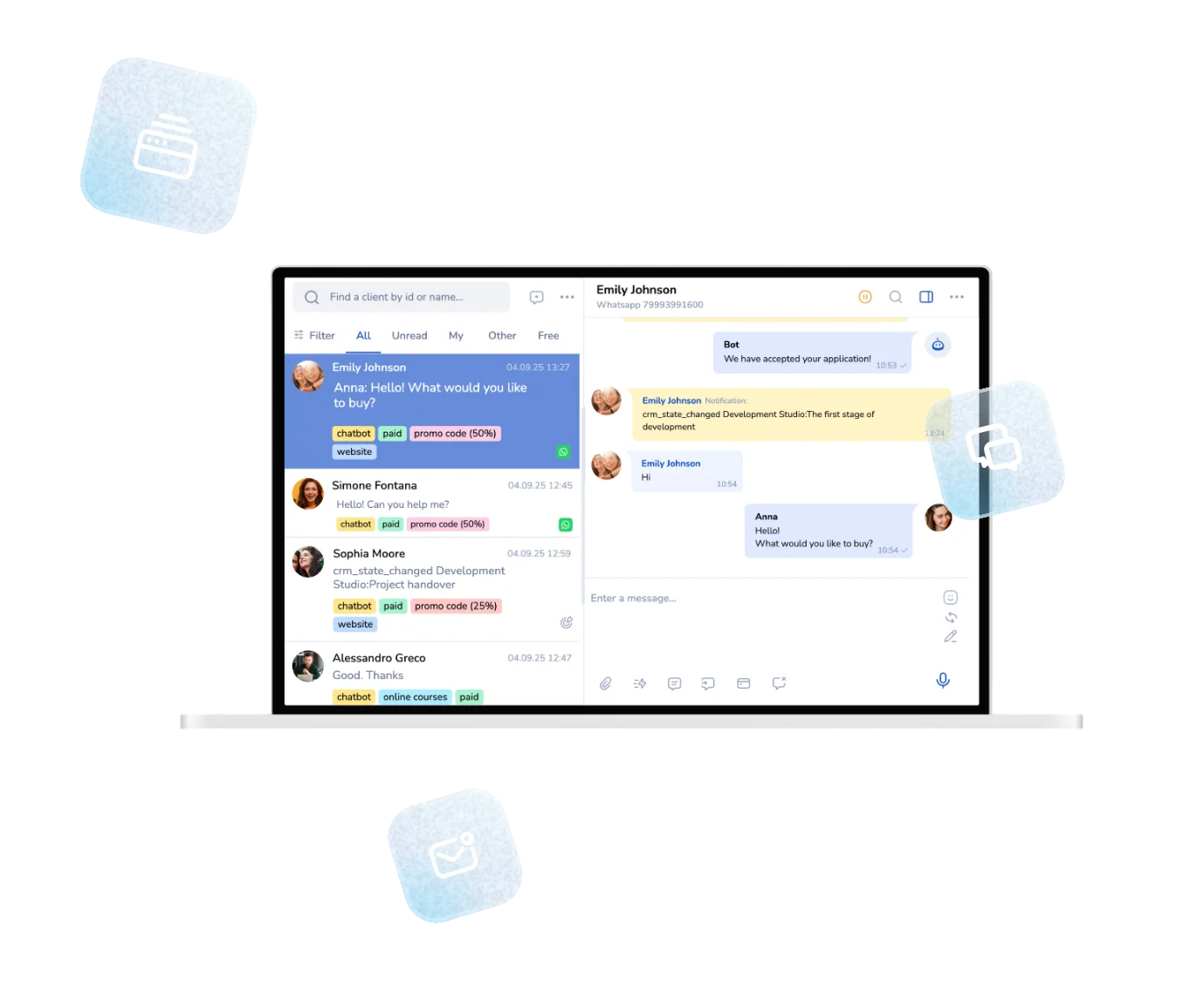
A WhatsApp chatbot for a restaurant answers menu questions, sends guests to your online shop to order, helps with table bookings, reminds guests who stopped replying and sends broadcasts. Guests write to restaurants to ask what is on the menu, whether a dish has nuts, whether the kitchen is open and whether a table is free. A bot can answer these messages at once and send the guest on to the shop to place the order.
| Task | How it works in Mavibot |
|---|---|
| Answer menu questions | An AI assistant replies from the menu and the rules you add to its knowledge, so guests get an answer at any hour |
| Take an order | The bot sends a link to your online shop. The guest picks dishes, chooses delivery and pays on the payment page. The order arrives in the Orders tab of your shop |
| Book a table | The bot sends a booking page link, or the AI assistant asks for the name, date, time and number of guests in the chat |
| Bring back a guest who stopped replying | The AI assistant sends a reminder. You write the rules and set how many reminders it may send |
| Announce specials | You send a broadcast to your WhatsApp contacts from the Broadcasts section |
The guest installs nothing and writes to your number in the app they already use.
How an order gets from WhatsApp to your shop
In this setup, orders go through an online shop. It keeps dishes, prices, delivery and payment in one place. The guest writes to your number, and the bot sends the shop link. The guest picks dishes on the shop page and pays on the page of the payment service. You then see the order in the Orders tab of the shop.
You can also show the first choices as buttons, for example one for the menu and one for a booking. The guide to WhatsApp buttons shows how they work in the builder.
The shop part is the same as for any Mavibot store: dishes as products with categories, delivery methods set per shop, and the payment services you have connected. Our guide to a free online store covers it step by step.
How to set up a WhatsApp chatbot for a restaurant
Setting up the bot takes five steps: connect WhatsApp, add the menu to an AI assistant, create the shop, make the bot send the links and test it. You need a WhatsApp number, access to the Facebook account that manages your Meta business account and a Mavibot account. No developer is required.
Step 1. Connect WhatsApp through your Meta account
Open Channels and choose WhatsApp Business API. Mavibot connects the number through your Meta account, so sign in with the Facebook account that manages it. You can find more detail on the WhatsApp Business API page.

Step 2. Add the menu to an AI assistant
Open AI assistant and create an assistant for the restaurant. In Bot settings describe its job and tone. In Bot knowledge add the menu with dishes, ingredients, allergens, sizes and prices. You can add the menu as text, a file or a table. In the example below, the instructions also tell the assistant to ask for the name, date and time, number of guests and a phone number when a guest wants to book a table.

The reminder for a guest who stopped replying is set in the AI assistant too. Write the rules for the message and set how many reminders it may send.
Step 3. Create the online shop and connect payments
Open Sites, create an online shop and add your dishes as products. A table import is available if the menu is long. In the shop, enable the delivery methods you use and the payment service you connect. Payment services are connected in Acquiring, and the Payment tab of the shop shows the ones you have already connected there. On a paid plan you can create a separate shop for each location.

Step 4. Make the bot send the shop and booking links
In the builder, add a flow for the first message from a guest. The bot greets the guest and sends the link to your shop. For bookings, add the link to your booking page or let the AI assistant collect the details. The guide to WhatsApp appointment booking shows how to set up a booking page.
Step 5. Test it from your own phone
Write to your WhatsApp number as a guest. Ask about a dish, open the shop link, place an order and pay. Then open the Orders tab of the shop and check that the order is there. Each order shows its payment status, for example Paid or Awaiting payment. Do the same with a booking.

Send specials and repeat offers with broadcasts
Broadcasts in WhatsApp work like any other Mavibot broadcast. Open Broadcasts, start a new mailing, choose WhatsApp as the channel and the recipients, write the message and send it. Use it for a weekend offer or a new dish. Our comparison of WhatsApp broadcasts and email explains when each works better.

How much a restaurant bot costs
You can start on the free plan for $0, and the Business plan costs $39 a month. Prices are from the pricing section of the Mavibot homepage, checked in October 2026.
| Plan | Price | What it includes |
|---|---|---|
| Free | $0 | 50 messages a day, one site or shop, any channel |
| Business | $39 a month, $398 a year | 10,000 messages, 1,000 emails |
The Mavibot AI plan costs $59 a month, or $602 a year. A second WhatsApp number counts as an additional channel and costs $9.90 a month. Mavibot takes no commission on shop sales, and payment services charge their own fee.
WhatsApp conversations are billed by Meta to your Meta account, separately from Mavibot. For the current rules, see our note on WhatsApp pricing changes.
Which restaurants it fits
A delivery restaurant gets the full path from a question to a paid order. A cafe with a short menu can use the bot for questions and bookings. A dark kitchen has no hall, so WhatsApp and the shop become its whole storefront. A restaurant group can open one shop per location and connect a WhatsApp number for each.
What the bot does not do
The guest pays on the page of the payment service, not inside the chat. The AI assistant works from what you add to its knowledge, so update the menu there when dishes or prices change.
Build your restaurant bot for free
Create a Mavibot account, connect WhatsApp and try the free plan with your own menu. Use the code MAVI10 on the project creation screen to get 10 days of the top plan, or stay on the free plan. Open the WhatsApp Business API page to start.
Frequently asked questions
Can a restaurant take orders through a WhatsApp chatbot?
Yes. The bot answers the guest and sends a link to your Mavibot online shop. The guest picks dishes and pays on the payment page, and the order arrives in the Orders tab of the shop.
How does a guest place an order?
The guest writes to your WhatsApp number, receives the shop link from the bot, chooses dishes and delivery on the shop page and pays on the page of the payment service.
Can a guest pay inside the WhatsApp chat?
No. The guest pays on the page of the payment service that opens from the shop. The payment services you connected in Acquiring appear in the Payment tab of the shop.
Where do I see the orders?
In the Orders tab of the shop, which you find under Sites. Each shop has its own list of orders.
Can the chatbot book tables?
Yes. The bot can send a link to a booking page, or the AI assistant can ask for the name, date, time and number of guests in the chat.
How do I add my menu to the AI assistant?
Open AI assistant and add the menu to Bot knowledge as text, a file or a table. Include dishes, ingredients, allergens, sizes and prices, and update it when the menu changes.
Can the chatbot answer questions about ingredients and allergens?
Yes, if you add them. The AI assistant answers from the menu and the rules in its knowledge, so list the ingredients and allergens of each dish there and keep them current.
How much does a WhatsApp chatbot for a restaurant cost?
Mavibot has a free plan with 50 messages a day, one site or shop and any channel. Business costs $39 a month, or $398 a year, and includes 10,000 messages. A second WhatsApp number costs $9.90 a month. Prices were checked in October 2026.
Do I pay Meta separately for WhatsApp?
Yes. WhatsApp conversations are billed by Meta to your Meta account, separately from your Mavibot plan.
Can I use one account for several locations?
Yes. On a paid plan you can create a separate shop for each location. Each additional WhatsApp number counts as an additional channel at $9.90 a month.
Can I keep using delivery apps?
Yes. The bot works with your own WhatsApp number and shop, so you can keep delivery apps next to it. Mavibot takes no commission on shop sales, and payment services charge their own fee.
What do I need to connect WhatsApp?
A WhatsApp number and access to the Facebook account that manages your Meta business account. You connect it in Channels by choosing WhatsApp Business API.