


Telegram bot for business: how to create one for free, with no code
Short answer: yes. You can build a Telegram bot for your business for free and without code in about 15 to 20 minutes. Telegram doesn't charge for bots. Mavibot has a free plan (50 messages a day) and a free trial of the top plan: 3 days at sign-up, or 10 days with the promo code MAVI10. This guide builds a lead bot that greets a visitor, asks for a phone number and puts the lead into Dialogs. You can also describe the task to Mavi, the built-in AI assistant, and it builds the flow for you (Mavi is available during the trial and on the Mavibot AI plan).
What you'll build
A simple lead bot with four parts:
- a welcome message when someone taps Start;
- a question, with the answer saved to a variable;
- a button that asks for the visitor's phone number, with a check that the number is valid;
- a fallback reply if the visitor types something the bot doesn't expect.
When a visitor leaves a number, it appears in the client's card in Dialogs, so you can call back or move the lead into your CRM.
Step 1. Sign up
Go to Mavibot and sign up with your email, Google, Facebook or Apple account. During onboarding you describe what you do and what you want to achieve, and Mavibot creates your project. On the project creation screen there is a field for a promo code at the bottom. Enter MAVI10 there to get 10 days of the top plan free.
Step 2. Build the conversation flow
You can build the flow yourself, or ask Mavi to do it. To use Mavi, describe the task in plain words, for example "a bot that greets visitors and collects their name and phone number", and Mavi builds the blocks for you. To build it yourself, follow the steps below.
- Create a block called Start. In the Trigger field enter
/start, and in the Message tab write a short, friendly welcome text.

- In the block settings choose Create a block below. You can drag the new block anywhere on the canvas.
- On the connecting arrow, save the visitor's reply to a variable.
- In the second block, write your question and add the Request phone number button.

- From the second block, create a third block that runs once the visitor sends a number. On the arrow to the third block, add a regular expression to check numbers that were typed by hand:
^(\+)?((\d{2,3}) ?\d|\d)(([ -]?\d)|( ?(\d{2,3}) ?)){5,12}\d$
- Also create a Fallback block from the second block. It replies when the input doesn't match the phone format. The arrow to the Fallback block needs no condition.

Step 3. Connect the bot to Telegram
- In Telegram, open @BotFather, the official bot with a blue checkmark. Beware of fakes with similar names.
- Send
/newbot, then enter a name (your customers will see it) and a username. The username must end withbot, for example@my_business_bot. - BotFather replies with a token, a separate line of digits and letters. Tap it to copy.
- In Mavibot, open the Channels section and choose Telegram, paste the token into the Connect Telegram window and click Connect a bot.

Step 4. Test and launch
Open your bot in Telegram, tap Start and go through every path: send a valid number, type one by hand, and type something unexpected to trigger the fallback. When everything works, your bot is live.
Where you see the leads
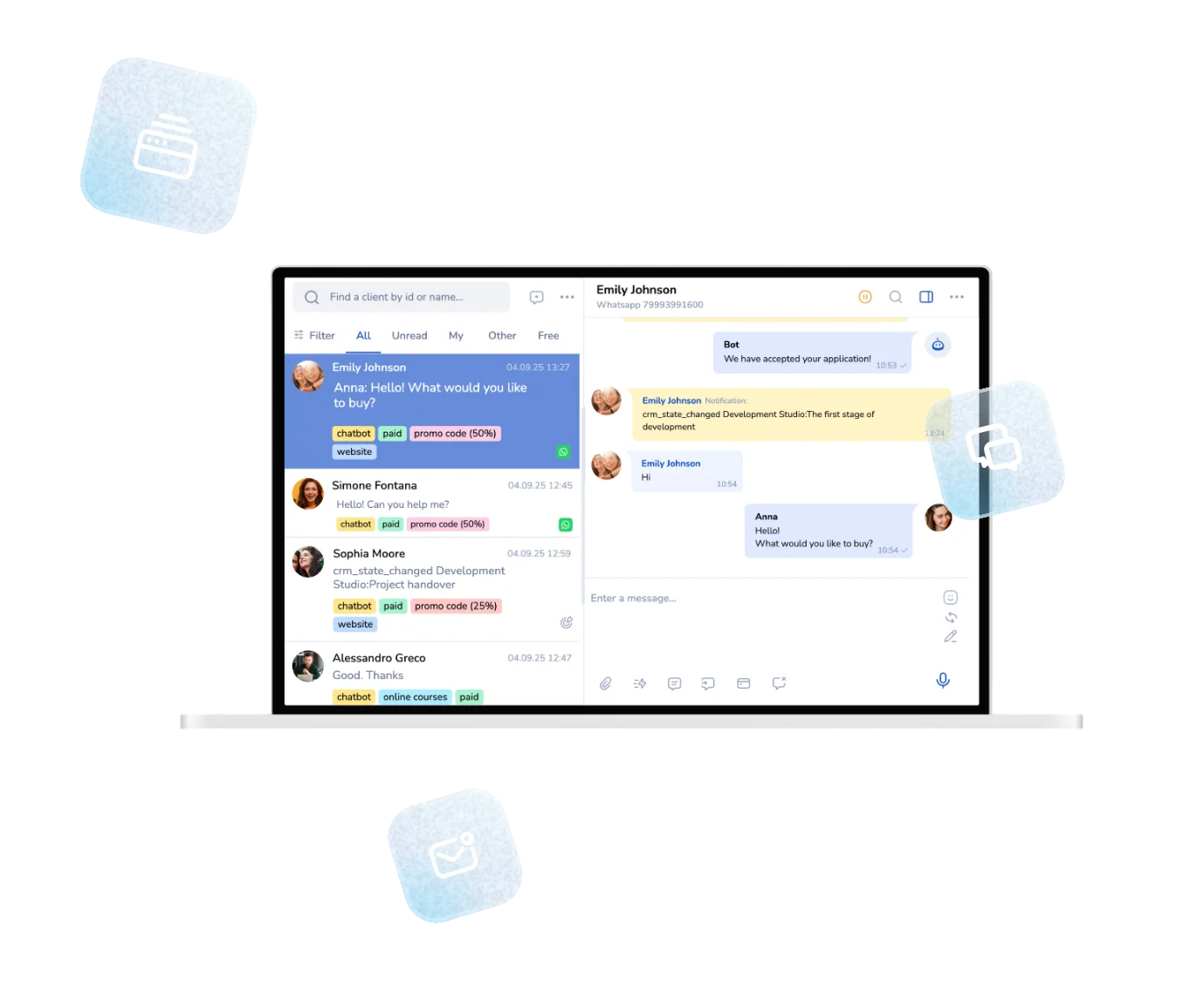
Open Dialogs, choose a client, and the phone number is shown in their card. From there you can reply in the same chat, assign the client to a colleague or work with them in the CRM. For more on how Dialogs works, see our guide to the omnichannel inbox for small business.
How much a Telegram bot costs
The Telegram Bot API and @BotFather are free. For the platform, a new account starts with 3 days of the top plan (10 days with the promo code MAVI10), after which you pay or switch to the free plan. The prices below are from the pricing page and may change.
| Plan | Price | Limits |
|---|---|---|
| Free | $0, no credit card | 50 messages a day, 1 website or online shop, any channel, courses for up to 10 students |
| Business | $39 a month | up to 10,000 messages a day, up to 1,000 emails a day, courses for up to 1,000 students, webinars |
| Mavibot AI | $59 a month | everything in Business, plus Mavi as an AI employee for sales |
The free plan is enough to build and test this bot. The 50-message daily limit counts every message the bot sends, test dialogs included, so a busy bot or a long test can use it up. If you hit the limit, move to a paid plan.
What to add next
- Broadcasts to everyone who started your bot.
- A paid channel with a subscription bot.
- A Telegram Mini App with a shop, booking or lead form.
- Payments on a button. Connect a payment provider, choose the payment function on a button and enter the payment details. The customer taps the button, pays on the provider's page, and the next block runs when the provider confirms the payment.
- Answering from your own account: see how to connect a chatbot to Telegram Business without Premium.
Before you send a broadcast, make sure people agreed to receive it, and give them an easy way to reach a person.
Create your Telegram bot
Start free, enter the promo code MAVI10 on the project creation screen for 10 days of the top plan, and connect your first bot. If you get stuck, write in the live chat on the website or message @mavibotai_bot in Telegram.
Frequently asked questions
Can I create a Telegram bot without coding?
Yes. In Mavibot you build the bot from blocks and arrows in a visual builder, or you describe the task to Mavi and it assembles the flow for you. You don't need to program.
Is creating a Telegram bot free?
Yes. Creating a bot through @BotFather is free, and Mavibot has a free plan with up to 50 messages a day. New accounts also get 3 days of the top plan, or 10 days with the promo code MAVI10, after which you can pay or keep the free plan.
Do I have to pay Telegram for a bot?
No. The Telegram Bot API and @BotFather are free for everyone.
How much does a Telegram bot cost on Mavibot?
The free plan costs $0. The Business plan is $39 a month and the Mavibot AI plan is $59 a month, according to the pricing page. Business raises the limit to 10,000 messages a day.
Can the bot accept payments?
Yes. You connect a payment provider, then choose the payment function on a bot button and enter the payment details. The customer taps the button, pays on the provider's page, and the next block runs when the provider confirms the payment.
Where do I see the phone numbers the bot collects?
In Dialogs. Choose the client, and the phone number is shown in their card.
Can Mavi build the bot for me?
Yes. Describe the task in plain words and Mavi builds the flow. Mavi is available during the trial and on the Mavibot AI plan.
What if the bot stops responding after I connect it?
Check that the token is correct, that the bot was started with /start and that you haven't blocked it. If the problem remains, contact support.